
Driver Instructions
Learn how to use NEXi during your shift using voice commands.
🚛 Vehicle Setup
Set Up NEXi Once Per Vehicle
Do this the first time you use a vehicle. NEXi saves your settings — you won’t need to repeat this unless you switch to a different truck.
ℹ️ This is a one-time setup per vehicle. Once assigned NEXi remembers your vehicle and settings automatically.
DOWNLOAD & ACCOUNT
 Download the NEXi App
Search NEXi in the App Store (iOS) or Google Play (Android). Install and open it.
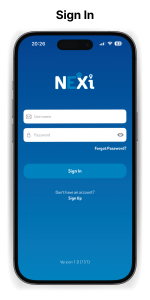
Sign In or Create Your Account
Use the email address your fleet manager registered you with. If you’re new, tap Create Accountand use your work email.
- Tap Sign In on the home screen
- Enter your work email and password
- If first time: tap Create Account → enter email → check inbox for verification link
FORGOT YOUR PASSWORD?
Tap “Forgot Password” on the sign-in screen. A reset link goes to your work email.
Close ▲
ASSIGN YOUR VEHICLE
 Enable Bluetooth
Make sure Bluetooth is turned on in your phone settings before opening NEXi.
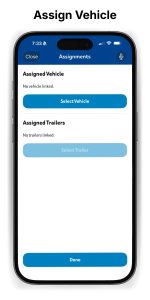
Assign Your Vehicle
From the NEXi home screen, tap Connect Vehicle. NEXi will scan for your vehicle’s OBD device.
- Tap Connect Vehicle on the home screen
- Wait for NEXi to detect your vehicle (10–20 seconds)
- Confirm the vehicle name matches your truck
- Tap Assign — done. NEXi saves this vehicle permanently.
CAN’T FIND YOUR VEHICLE?
Make sure the OBD-II device is plugged into the port under the dash (driver’s side). Ask your fleet manager if you’re not sure where it is.
PERMISSIONS
Allow Location & Microphone
NEXi needs location (for incident stamping) and microphone (for voice commands). Allow both when prompted — this is also a one-time step.
- Allow Location: select “Always” or “While Using App”
- Allow Microphone: tap Allow when prompted
- If you accidentally denied either: go to Phone Settings → NEXi → Permissions
You’re Set
NEXi is ready. From now on, open the app and you’re connected — no setup needed.
SWITCHING TO A DIFFERENT VEHICLE?
Tap Assign Vehicle again and add the new truck. Your account and history stay the same.
📋 Pre & Post-Trip Inspection
PRE-TRIP INSPECTION
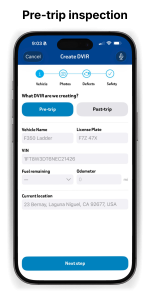 Start the Inspection
From the NEXi home screen, say the wake phrase or tap the inspection button.
Say: “Hey NEXi, start pre-trip inspection”.
Walk the Vehicle — Exterior
Walk around the vehicle in a clockwise direction. NEXi will prompt each zone.
- Front: headlights, grille, windshield, wipers
- Driver side: mirrors, tires, fuel cap, doors
- Rear: tail lights, brake lights, cargo doors, mud flaps
- Passenger side: tires, mirrors, doors
FOUND AN ISSUE?
Say it naturally — “Left rear tire looks low” — NEXi will log it and prompt you to take a photo.
Report Issues as You Go
If you spot anything — a crack, a low tire, a broken light — say it out loud. NEXi captures it immediately.
Say: “I see [describe the issue]” — NEXi prompts for a photo if needed.
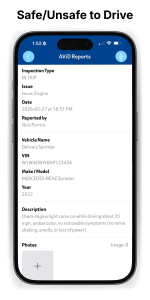
Confirm Safe-to-Drive Decision
NEXi will ask: “Is this vehicle safe to drive?” Answer Safe to Drive or Unsafe to Drive.
NEVER SKIP THIS STEP.
A “no” flags the vehicle for maintenance before it goes on the road. This protects you and your company.
POST-TRIP INSPECTION
 Start Post-Trip at End of Shift
Do this after your final delivery, before you leave the vehicle.
Say: “Hey NEXi, start post-trip inspection”
Walk the Vehicle Again
Same process as pre-trip. NEXi compares your post-trip report to this morning’s pre-trip automatically.
- Note any new damage that wasn’t there at start of shift
- Check tires for wear or damage from the day
- Check cargo area if applicable
Submit and Sign Off
NEXi asks you to confirm and submit. Your fleet manager gets the completed DVIR instantly.
Say: “Hey NEXi, submit post-trip” — or tap Submit on screen.
BOTH REPORTS IN ONE PLACE.
Your fleet manager sees pre and post-trip side by side. Any new issues flagged between them are automatically highlighted.
🚨 In-Trip Incident Reporting
Something Just Happened
Don’t wait until you get back to the yard. Report it now, while you’re at the scene and the details are fresh.
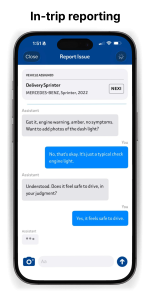
Hey NEXi – I was in an accident or Hey NEXi a check engine light just came on and NEXi will guide you through a process of capturing everything you need to capture including pictures.
⚠️ Always pull over safely before using NEXi. Never operate the app while the vehicle is moving.
REPORT ANY ISSUE — ANYTIME
 Stay on the NEXi Home Screen
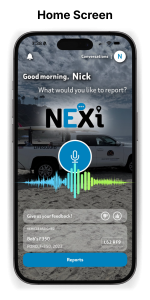
You don’t need to navigate anywhere. From the main screen, just start talking.
KEY DIFFERENCE FROM DVIR.
In-trip is always-on from the home screen. DVIR is a structured flow you initiate. For anything happening right now — just say it.
Say What Happened
Speak naturally. NEXi understands plain language — no special phrasing needed.
- “Hey NEXi, check engine light just came on”
- “Hey NEXi, I just got a flat tire”
- “Hey NEXi, I was just in an accident”
- “Hey NEXi, there’s a crack in my windshield”
- “Hey NEXi, the brakes feel soft”
Answer NEXi’s Follow-Up Questions
Guardian will ask clarifying questions to build a complete report. Answer them out loud.
- When did it happen / when did you notice it?
- Is the vehicle still drivable?
- Are you or anyone else injured?
- Any visible damage?
Take Photos When Prompted
For accidents, damage, or warning lights — NEXi will ask you to take a photo. The camera opens automatically tap the shutter, then say “Done” or “Next”.
- Accident: photograph both vehicles, other driver’s plate, their insurance card
- Damage: multiple angles, close-up of the affected area
- Warning light: photo of the dashboard indicator
MORE PHOTOS = BETTER PROTECTION.
Every photo is timestamped and GPS-stamped automatically. Take more than you think you need.
Report is Submitted Automatically
Once NEXi has what it needs, it submits the incident report to your fleet manager instantly — no extra steps.
- You’ll hear: “Report submitted. Your fleet manager has been notified.”
- A copy goes to your app history
- For accidents: NEXi also surfaces emergency contact numbers
FOR ACCIDENTS INVOLVING INJURIES:
Call 911 first. Then use NEXi to document. Your safety comes before the report.
🎙 NEXi Commands
What to Say to NEXi
There is one wake word: “Hey NEXi” — say it, wait for the tone, then speak your command.
🎙 Every command starts with “Hey NEXi” — then just say what you need in plain language. No special phrasing required.
INSPECTIONS
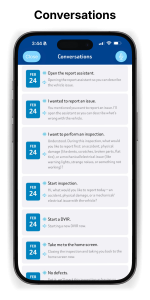 Starting & Navigating Inspections
Trigger the guided DVIR flow and move through it step by step.
- “Hey NEXi, start pre-trip inspection”
- “Hey NEXi, start post-trip inspection”
- “Hey NEXi, next” — advance to the next step
- “Hey NEXi, go back” — return to previous step
- “Hey NEXi, submit inspection” — submit completed report
Reporting During Inspection
Speak defects and confirmations naturally as you walk the vehicle.
- “Good” or “Clear” — mark current item as passed
- “Issue” — flag the current item
- “Hey NEXi, I see [describe issue]” — log a specific defect
- “Safe to drive” — confirm vehicle is roadworthy
- “Not safe to drive” — flag vehicle for maintenance
IN-TRIP INCIDENTS
 Reporting Issues On the Road
From the home screen — just say it. No need to navigate anywhere.
- “Hey NEXi, check engine light came on”
- “Hey NEXi, I have a flat tire”
- “Hey NEXi, I was in an accident”
- “Hey NEXi, my load shifted”
- “Hey NEXi, the brakes feel soft”
- “Hey NEXi, add a note to my report”
Photos & Documentation
Trigger photo capture and move through the documentation steps.
- “Hey NEXi, take a photo”
- “Hey NEXi, done” — confirm photo taken
- “Hey NEXi, next photo” — move to next required shot
- “Hey NEXi, submit” — finalize and send report
UPDATE A REPORT AFTER THE FACT:
Say “Hey NEXi, update my last report” to add photos or notes up to 30 minutes after submission.
OTHER USEFUL COMMANDS
Navigation & Help
Shortcuts for common situations during your shift.
- “Hey NEXi, call my fleet manager”
- “Hey NEXi, where am I?” — GPS location readout
- “Hey NEXi, what does this warning light mean?”
- “Hey NEXi, find the nearest fuel station”
- “Hey NEXi, end my shift”
Voice‑Guided Inspections
Complete inspections faster using voice. No paperwork. No delays.